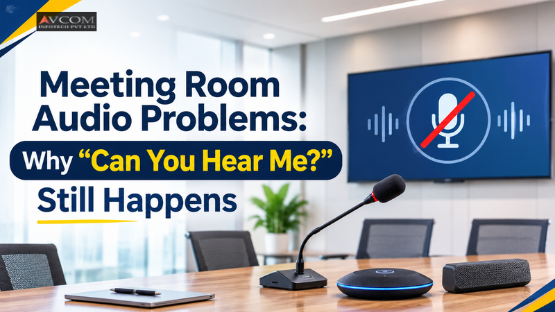
A frozen video feed might force you to squint for a few seconds. Meeting room audio problems force you to abandon the agenda entirely. When remote participants cannot hear the room, productivity drops to zero. We have all endured that awkward pause where someone asks, "Can you hear me?" into the silence. You can fix these failures by upgrading your meeting room AV equipment setup, deploying AI-driven ceiling microphones, and following a strict conference room audio troubleshooting protocol.
Meeting room audio problems persist because audio relies on a fragile chain of hardware, acoustics and network transmission. Unlike video, which degrades gracefully into pixelation, poor audio makes every sentence impossible to understand. According to Yealink, a meeting can survive reduced video quality, but it is much harder to conduct a productive discussion when people cannot hear one another clearly.
When audio fails, meetings do not just pause. They break down completely. Participants repeat themselves, interrupt each other, and eventually abandon the call out of frustration. The Lucid Meetings blog highlights this reality by noting that support complaints from users consistently blamed audio failures for ruining their online meetings.
Poor audio clarity in virtual meetings carries a direct operational cost. Executives waste time trying to configure settings instead of making decisions. IT teams field urgent support tickets instead of focusing on long-term infrastructure.
Video conferencing audio issues cause more frustration than visual glitches because human communication prioritizes sound. A slight delay in video is easy to ignore. A slight delay in audio makes conversation impossible.
According to a Spiceworks community thread, IT professionals report that sustained loud noises or shared video audio causes in-room sound to cut out entirely, dropping audio levels so low that participants only hear individual syllables. This happens across multiple platforms, including Zoom, Teams, and Boardable. When the sound drops, the meeting stops.
Video conferencing audio issues typically stem from acoustic echo, inconsistent microphone pickup, or software integration conflicts. Diagnosing the problem requires identifying exactly who cannot hear whom. If remote participants cannot hear the room, you must investigate the microphone path. If the room cannot hear remote participants, you must investigate the playback path.
Echo and static ruin calls fast. Echo usually happens when a microphone picks up audio from the room's speakers and transmits it back to the remote participants. According to Neat, faulty connections, muted microphones, or poor acoustics frequently cause these disruptions.
Background noise acts similarly. HVAC systems, projector fans, and side conversations bleed into the audio feed. Without proper audio echo cancellation built into your AV hardware, the remote endpoint receives a muddy, delayed mix of room noise.
When a microphone picks up some participants but ignores others, people often blame the microphone itself. The real culprit is pickup coverage. Microphones have a physical and acoustic range. If participants sit outside that effective pickup zone, remote attendees will hear some people perfectly and others not at all.
Room layout dictates microphone performance. A microphone designed for a compact huddle space will fail in a large boardroom. According to Yealink, larger spaces require additional microphone coverage or a different room architecture rather than a simple hardware replacement.
Sometimes the hardware works perfectly, but the software fails. A Microsoft Q&A forum post detailed a recurring issue where Microsoft Teams meetings start with good sound quality, but mid-meeting, the room suddenly cannot hear the remote callers. The only workaround was ending the meeting for all participants and restarting it.
Software conflicts happen when conferencing systems select the wrong audio device. A laptop microphone, a USB microphone, a room array, and an integrated camera mic can all appear as available inputs. If the software defaults to the wrong device, the room transmits dead air.
Your meeting room AV equipment setup dictates sound quality by determining how voices are captured and processed before they reach the network. A poorly planned setup introduces acoustic echo, drops audio packets, and creates dead zones. Proper hardware placement and the right microphone selection eliminate these structural failures.
Relying on a built-in laptop microphone is the fastest way to ruin a meeting. Laptop microphones sit too far from the speaker, capture keyboard typing, and pick up room echo. They lack the directional focus required to isolate human voices in a shared space.
When multiple remote participants join from a single conference room using a single laptop, the built-in mic cannot distinguish between them. It captures the room as one loud, echoing mass. You need dedicated hardware to isolate voices and cancel room noise.
Hardware placement makes or breaks audio clarity. You cannot place a microphone in the center of a long table and expect it to capture someone sitting twelve feet away. According to Neat, using high-quality equipment with advanced microphone arrays, noise suppression, and automatic gain control adjusts audio levels dynamically, avoiding spikes or drop-offs.
You must position microphones within the actual acoustic coverage area of the people speaking. Placing speakers away from microphones prevents acoustic echo. Proper placement ensures the audio processing hardware has clean sound to work with before it transmits the signal.
The best steps for conference room audio troubleshooting are checking hardware connections first, verifying software audio settings second, and testing the network last. You must separate conference-specific failures from general hardware failures. Replacing a room microphone will not fix a problem caused by the conferencing application selecting the wrong speaker output.
Start with the physical layer. Check if the room speakers are muted. Verify the physical connection between the room system and the audio output. Inspect cables for loose wiring. Test another audio source in the room. If the speakers reproduce other audio normally but conferencing audio does not, you have a software issue, not a hardware issue. If no audio source works, investigate the room's hardware.
Once you rule out hardware, examine the conferencing application. Verify that the software uses the intended speaker and microphone devices. Check mute status and microphone permissions. Test whether the microphone captures speech outside the meeting application. If the microphone works in the OS but not in the meeting, the application configuration is wrong.
AVCOM infotech solves meeting room audio problems by integrating AI Speech Ceiling Microphones and applying strict technical excellence in AV deployments. They partner with the Cavitak Team to deliver smarter hardware solutions. This approach targets the root acoustic failures in conference rooms rather than just patching software settings.
The AI Speech Ceiling Microphone solves inconsistent voice pickup and dead zones. Instead of placing microphones on a table, this ceiling-mounted solution captures voices equidistant from all participants. It uses AI to isolate human speech and cancel out room noise and acoustic echo. AVCOM infotech deploys this technology in collaboration with the Cavitak Team to ensure the hardware matches the room's exact acoustic profile.
AVCOM infotech focuses on continuous learning and technical excellence. Their team, including experts like Mr. Faiz and Mr. Janesh Patel, stays updated on the latest AV technologies and integration challenges. They do not just install hardware; they analyze the room architecture, diagnose potential video conferencing audio issues, and build a system designed for clear virtual meetings. You can see their full range of audio visual collaboration solutions on their site.
You ensure audio clarity in virtual meetings moving forward by scheduling regular maintenance, updating firmware, and training staff on AV best practices. You cannot install a system once and ignore it. Software updates change audio algorithms, and hardware connections loosen over time.
Keep video conferencing software updated to benefit from the latest performance improvements and bug fixes. Test your Wi-Fi signal strength and use wired Ethernet connections for greater stability. According to Neat, maintaining modern routers and switches with regular firmware updates sustains performance and prevents connectivity interruptions.
Train your staff to use the room correctly. Teach them how to check mute status, verify microphone selection, and understand dead zones. The Lucid Meetings blog emphasizes that most advice on fixing audio is written for IT support, which does not help everyday employees trying to start a call. By training your team, you empower them to handle basic conference room audio troubleshooting without waiting for IT.
If you want to eliminate meeting room audio problems for good, you need expert integration. Ready to fix your meeting rooms? Contact the AVCOM team today for a room-specific audio recommendation.
For more AV tips and project updates, follow AVCOM infotech on Facebook, Instagram, and LinkedIn.
Reviewed by the AVCOM infotech content team
| Audio Problem | Primary Cause | Recommended Solution |
|---|---|---|
| Acoustic Echo | Microphones picking up room speaker audio | Implement audio echo cancellation hardware |
| Inconsistent Voice Pickup | Participants sitting outside microphone range | Install an AI Speech Ceiling Microphone |
| Software Integration Conflicts | Platform selecting the wrong audio device | Verify and manually configure software audio settings |
| Background Noise | HVAC systems and projector fans bleeding into calls | Use dedicated hardware with dynamic noise suppression |
Meeting room participants keep asking this because of poor microphone placement, acoustic echo, or improper equipment calibration. When audio clarity in virtual meetings fails, remote attendees cannot hear the room. Upgrading your meeting room AV equipment setup with proper microphones fixes this frustration instantly.
The most common cause of video conferencing audio issues is acoustic echo, which happens when microphones pick up audio from room speakers. Other major causes include inconsistent voice pickup, background noise, and software integration conflicts where the platform selects the wrong audio device.
An AI Speech Ceiling Microphone improves audio clarity by capturing voices equidistantly from all participants. It uses artificial intelligence to isolate human speech and cancel out room noise and acoustic echo. This eliminates dead zones and ensures remote attendees hear everyone clearly.
The first steps in conference room audio troubleshooting involve checking physical hardware and cable connections. Verify that speakers are unmuted and properly connected. If hardware works, examine your software audio settings to ensure the conferencing application selects the correct microphone and speaker devices.
AVCOM infotech approaches meeting room AV equipment setup by analyzing room architecture and integrating AI-driven solutions like the AI Speech Ceiling Microphone. Their experts focus on continuous learning and technical excellence, ensuring hardware matches the room's acoustic profile to eliminate video conferencing audio issues.